Note Formats
Overview
As a mental health practitioner, you may need your progress notes to adhere to a specific format. For example, your organization might require that all notes follow the S.O.A.P. note format.
Supported Formats
Optimum – The default note format. This is the preferred note format if a different format is not required.
S.O.A.P. – This format is widely used across many healthcare professions.
D.A.P. – Similar to SOAP notes but simplified for healthcare professionals.
Note
Chronicler automatically formats your notes as they are created.
Copying + Pasting a note
Optimum
The ‘Copy’ button will copy the entire note to your clipboard. You can then paste the note into the document storage system or E.H.R. of your choice.
Example
-
Once your note is complete, click the ‘Copy’ button to copy that note to your clipboard.
-
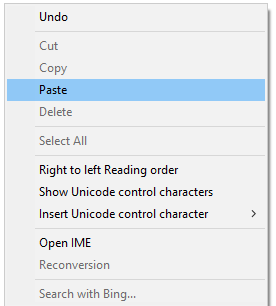
‘Right Mouse click’ in the text area where you wish to paste your note, and choose ‘Paste.’ The full note content will appear.
-
Save the changes in your system.
That’s it! Your note has been carried over stored.
S.O.A.P. and D.A.P.
With S.O.A.P. and D.A.P. notes, you can copy individual sections (e.g., only copy “Subjective”) or copy the entire note.
Note
Copying one section does not copy the section header. (e.g. if you copy the “Subjective” section, the word “Subjective” is not included.)
Copying the entire note does copy entire note, including section headers.
Copy a section
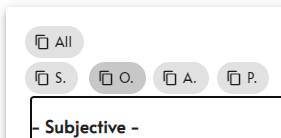
- Once your note is complete, click the copy button for the section that you wish to copy.
- examples of sections buttons
- “S” = Subjective
- “O” = Objective
- "D" = Data
- examples of sections buttons
- ‘Right mouse click’ in the text area where you wish to paste that section, and choose ‘Paste.’ The contents of that section will appear.
- Save the changes in your system.
That’s it! Your note section has been carried over and stored. Repeat these steps for other sections as needed.
Copy entire note
-
Once your note is complete, click the ‘All’ button to copy that note to your clipboard
-
‘Right Mouse click’ in the text area where you wish to paste your note, and choose ‘Paste.’ The full note content will appear (including section headers).
-
Save the changes in your system.
That’s it! Your note has been carried over stored.