How To Use the Format Editor
Overview
Chronicler’s format editor allows you to customize several elements of the structure and content of your progress notes.
This article provides instructions on how to edit step attributes and reorder the steps within your note.
Note
All changes that you make to your format are not applied until you begin a new note.
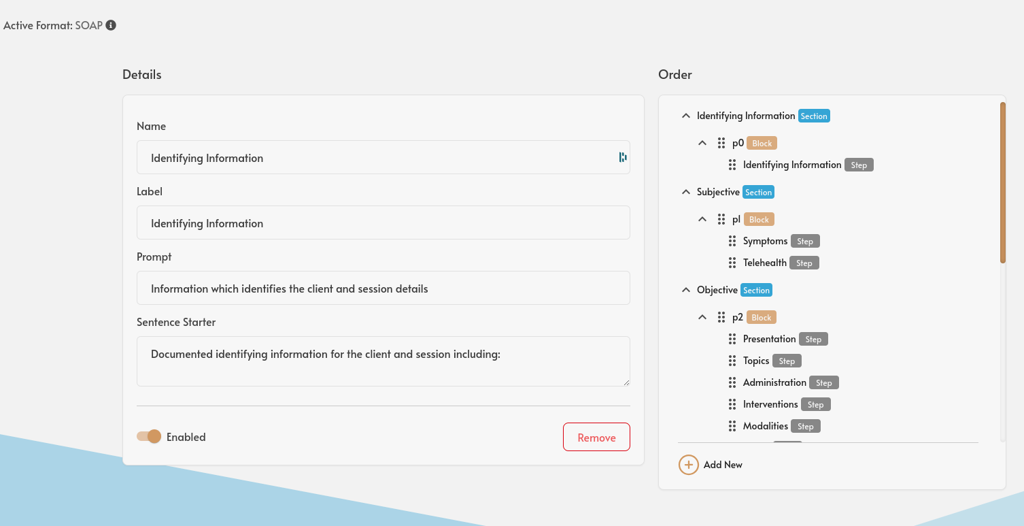
Edit the details for a step or block
In Chronicler, a step is a collection of resources (statements, prompt, sentence starter) that make up a portion of your progress note. A block corresponds to a paragraph in the progress note.
For example: you select statements from the “Interventions” step to populate the interventions portion of your progress note.
You can edit the following attributes in the format editor:
- Click the “customize” button in the note builder.
-
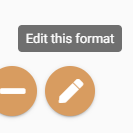
Click the gold button with the pen icon to open the format editor.
-
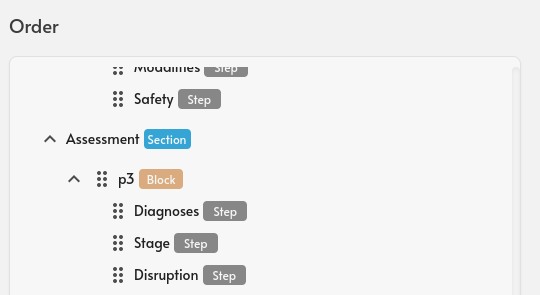
In the “Order” pane on the right side of the screen, click the title of the step that you wish to edit.
-
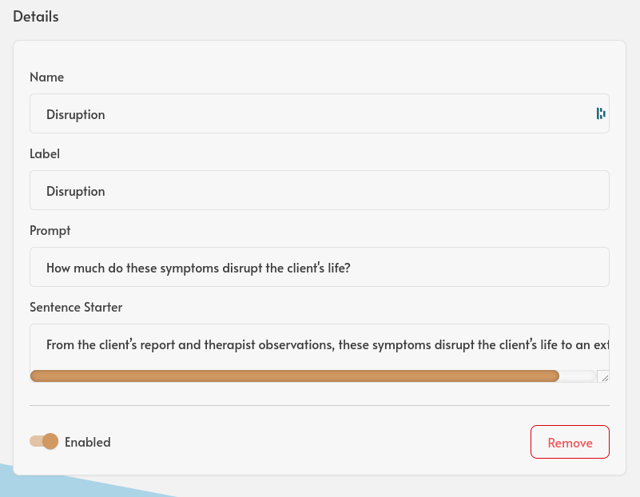
Make any changes that you wish in the “Details” pane on the left side of the screen.
- Elements that can be edited:
- Name – The name of this step
- Label – How this step appears in the “smart search” bar (e.g. “search Disruption”)
- Prompt – Text that helps you consider the necessary context to select statements for the step
- Sentence Starter – Text that appears at the beginning of the sentence for this step in your progress notes.
- Enabled – Controls whether a step appears in the note builder workflow. Disabled steps can always be re-enabled later in the format editor.
- Remove – Fully removes a step from your note format and note builder
Warning
Do not remove a step unless you are sure you will not be using this step, or its associated statements, in future progress notes.
- Elements that can be edited:
-
Click anywhere outside the text field that you are editing to save the current changes.
You’re all set! The changes will be applied the next time you begin a new note.
Note
These changes only apply to steps or block in the format that you are editing (e.g. S.O.A.P.). This allows you to maintain separate steps, blocks, and customization for each note format - Optimum, S.O.A.P. and D.A.P.
Reordering Steps and Blocks.
You can use the drag and drop feature in the format editor to reorder where the steps and blocks (i.e., paragraphs) appear in the note, and by extension, what order they appear in the note builder workflow.
For example:
I usually see the “Presentation” step, and then move to the “Symptoms” step. However, I would like to switch the order of those steps so that I start with “Symptoms” and then move to “Presentation.” I can use the drag and drop functionality to drag “Presentation” so that it is visually above “Symptoms,” and have that ordering reflected in my Chronicler workflow and note.
To change the order of a step in a format:
-
Click the “customize” button in the Note builder
-
Click the gold button with the pen icon to open the format editor.
-
Find the step or block that you would like to reorder in the “Order” pane.
-
Click the drag and drop icon (six dots) and hold your mouse down (or finger if on mobile).
-
Drag the step or block up or down to the desired location.
-
Steps can be dragged to a different position within the same block, or to a different block.
-
Blocks can be dragged to a different position within the same section, or to a different section.
-
You’re all set! The changes will be applied the next time you begin a new note.
Adding custom Steps or Blocks
Chronicler allows you to add custom steps or blocks (i.e., paragraphs) to your active note format so that you can account for any information that you may need which is not already covered by Chronicler’s default steps.
-
Click the “customize” button in the lower left corner of the note builder.
-
Click the gold button with the pen icon to open the format editor
-
Click the “Add New” button at the bottom of the “Order” pane and choose step or block.
-
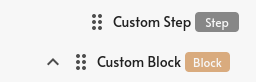
Chronicler will automatically generate a new step or block at the bottom of your note format and populate it with some placeholder content.
-
Customize the new step or block to your needs and move it where you’d like to be in the note
You’re all set! The next time that you begin a new note, your custom step will be included in the note builder.
Note
Custom steps do not contain any statements when first created. You will need to add your own custom statements to that step. Check out this article for instructions on adding custom statements.