Configure forms settings
Overview
This article includes instructions for personalizing client emails that come from Chronicler and having Chronicler automatically email pre- and post-session forms to your clients.
Personalizing Emails
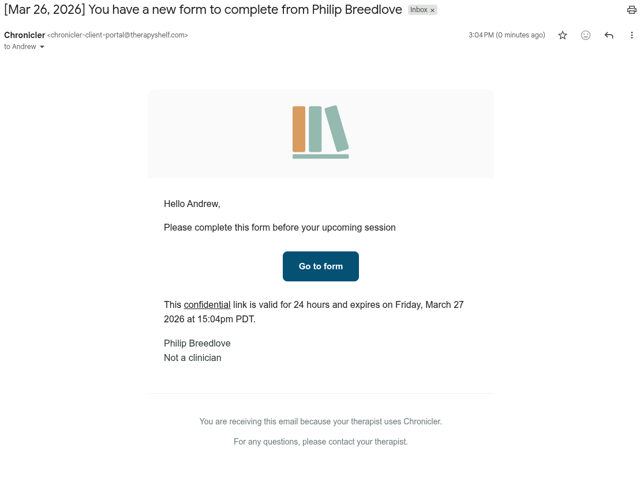
You can configure your practice name and an email signature for emails that Chronicler sends to your clients on your behalf. These personalizations make it more likely that your clients will perceive these emails as legitimate and actually complete the forms.
To personalize your emails: 1. Click “My Settings” on the left side menu, and then click the “Forms” tab.
-
Enter your practice name.
-
Set your desired name and identifiers (e.g., LMFT license# 11111).
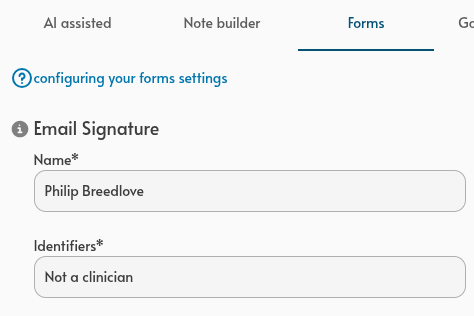
These personalizations will appear on emails that Chronicler sends to your clients.
Automatically emailing forms
Note
Google calendar sync is required to use this feature. Details are available in this help article
Once Google Calendar sync is enabled and your sessions are confirmed in Chronicler, you can have Chronicler automatically email a client a presession form before their session, and a postsession form once their session has finished.
Chronicler can only send forms to clients who have opted into email communications. Check out this article on managing clients for details on the email-opt-in process.
To enable this feature:
-
Go to “My Settings” and click the “Forms” tab.
-
Toggle the “Email pre- and post-session forms…” switch to the on position.

Chronicler will send the following forms for all eligible sessions (a session is eligible if it is confirmed in Chronicler with a client that has opted into emails).
-
Presession forms are emailed about 30 minutes before the client's session starts.
-
Postsession forms are emailed about 5 minutes before the client's session ends.
Note
See our article on client forms for specifics on what is contained in these forms.