Viewing Form Responses
Overview
Chronicler provides a helpful user interface that allows you to view form responses for your clients and quickly identify positive or negative trends in your clients' perceptions of their mental state and your work together.
Where to find results
Chronicler will notify you when a client has completed a form. To access the form results:
-
Click the notifications bell in the upper right corner.

-
Click the notification to view the detailed response.
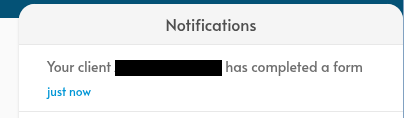
Alternatively, you can use the forms dashboard:
-
Click “Forms” in the left side menu.
-
Select the desired client, and find the desired form in “My forms” table.
-
Click the “Results” button on the right to view the detailed response.
Viewing form results
-
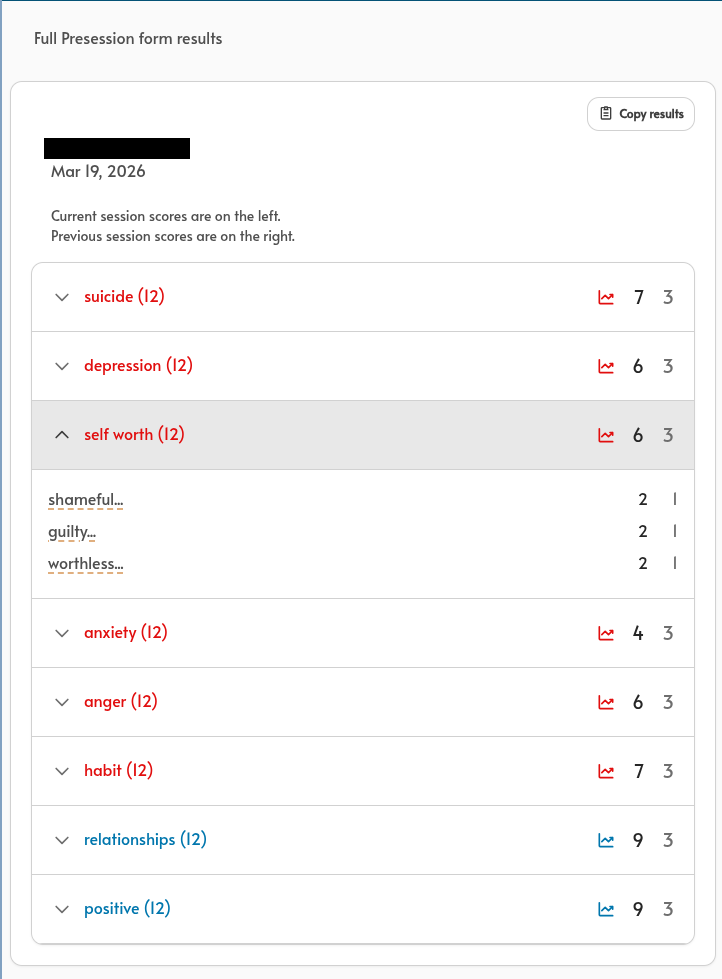
Scores are arranged by category
- example: the Depression category has a maximum possible score of 12.
-
Click (or tap on mobile) the category header to expand it and see the individual questions and responses.
- Hover or tap the dashed key word on the left to see the full text for that question
See client progress over time
When a client has completed forms for multiple sessions, Chronicler will automatically show both the results for that most recent form, and the next most recent form of the same type.
For example, if a client completed a presession form before their session last week, and a presession form before their session this week, Chronicler will show you the responses from both forms.
Responses are color coded:
-
current form scores appear in black.
-
previous form scores appear in gray.
The categories are also color-coded to make it easy to tell how a client views their progress in that category.
-
Positive progressions are blue.
-
Negative progressions are red.
- For example, if a client’s Anxiety responses are red, they’re reporting an increase in their symptoms.
Copy+paste results
Chronicler allows you to copy a client’s form responses to your clipboard and paste them into a HIPAA-compliant E.H.R. or document system of your choice.
-
Click “Results” for the form you wish to copy
-
Click the “Copy results” button in the upper right corner of the form response details.
-
Paste the plain text form details into your document system of choice.
Example of form details from copying and pasting:
Brief Postsession form results
Client Name: My first  test client
Date Completed: Feb 19, 2026
Category: empathy
Score: 3 out of 4
- Question: How well did you feel I understood you today?
  Answer: 3
Category: goals
Score: 6 out of 8
- Question: How well did I respect the topics you brought in today?
  Answer: 3
- Question: How much progress do you feel we made today?
  Answer: 3
Category: integrity
Score: 3 out of 4
- Question: How committed to doing homework are you today?
  Answer: 3